Discover how to seamlessly play music on your PS5 while gaming, enhancing your experience and staying immersed. This comprehensive guide covers popular streaming services like Spotify and Apple Music, alongside practical tips for volume control and troubleshooting. For the average US gamer, balancing a demanding life with precious gaming time means optimizing every session for relaxation and fun. Learn how to transform your PS5 into the ultimate entertainment hub, whether you are unwinding after a long day or diving into competitive play. We address common pain points like setup issues and offer solutions that fit into your busy schedule, ensuring you get the most out of your console. Stay current with trends and personalize your gaming soundtrack effortlessly with our expert advice.
How do I play Spotify on PS5 while gaming?
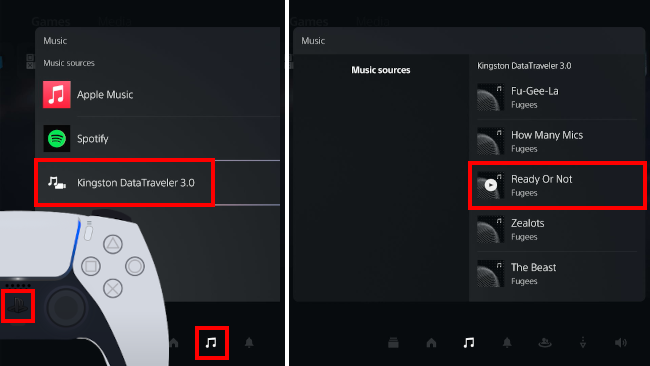
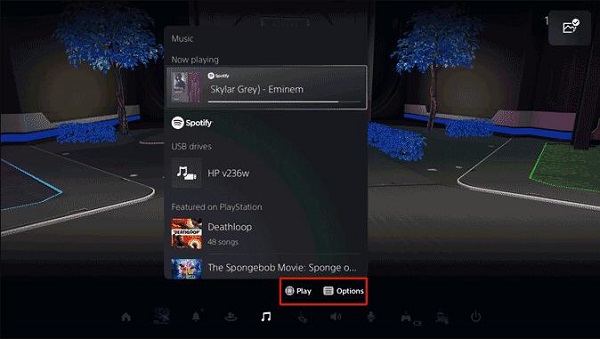
Playing Spotify on your PS5 while gaming is incredibly simple. First, download the Spotify app from the PlayStation Store and log in to your account. Once logged in, open Spotify, select your desired playlist or song, and start playback. Then, launch your game. The music will continue to play in the background. To control the music without leaving your game, simply press the PlayStation button on your DualSense controller to bring up the Control Center. From there, navigate to the 'Music' card, where you can play, pause, skip tracks, and adjust the volume independently of your game audio. This seamless integration allows you to curate your gaming atmosphere without interrupting your gameplay.
Can I use Apple Music on my PS5 while I'm playing a game?
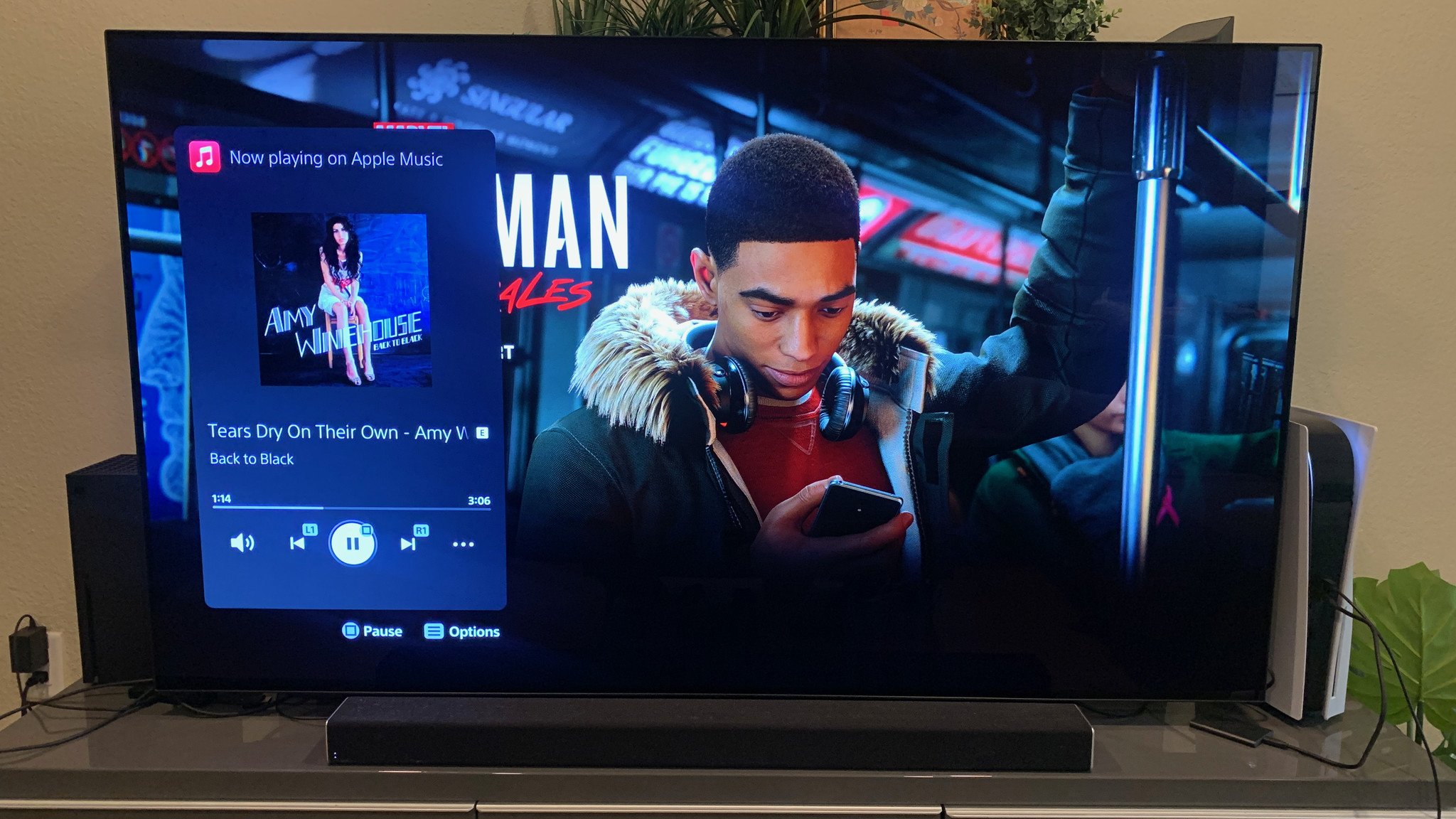
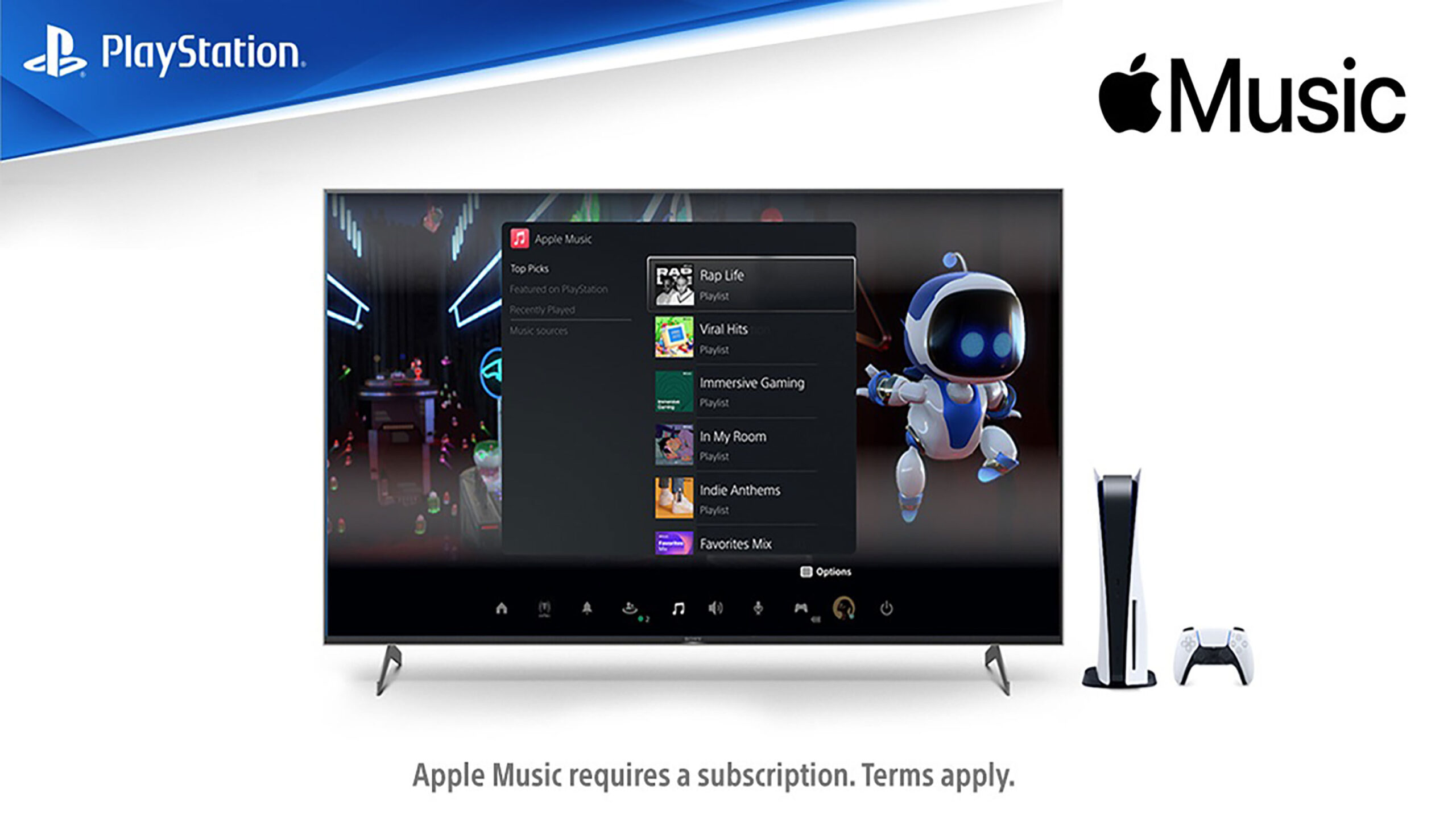
Absolutely! Apple Music has a dedicated app available on the PlayStation Store, making it easy to use while gaming. Just download the Apple Music app, sign in with your Apple ID, and start streaming your favorite tracks or playlists. Like Spotify, Apple Music runs in the background, allowing you to immerse yourself in your game. To manage your music, press the PlayStation button to access the Control Center, then select the Apple Music card. Here, you'll find options for playback control and volume adjustment, ensuring you maintain a perfect balance between your game's sound and your personal soundtrack. This is a fantastic option for gamers already invested in the Apple ecosystem.
How do I adjust music and game volume separately on PS5?
Adjusting the music and game volume independently on your PS5 is crucial for a balanced audio experience. While gaming, press the PlayStation button on your controller to open the Control Center. Navigate to the 'Sound' card, which looks like a speaker icon. Within this card, you will typically find sliders or options to adjust the volume for 'Game Audio' and 'Music' (or the specific music app you are using, like Spotify or Apple Music). You can fine-tune these levels to ensure neither your game's critical sound effects nor your background music overwhelms the other. This functionality is a lifesaver for busy adults who want full control over their entertainment environment, enabling you to hear footsteps in an FPS while still enjoying your favorite tunes.
What are the best music apps for PS5 gaming?
For dedicated background music playback while gaming on PS5, the best apps are Spotify and Apple Music. Both offer official, fully integrated applications available on the PlayStation Store. They allow for seamless background playback, quick controls via the PS5's Control Center, and access to extensive music libraries. While other methods like using the PS5's web browser for services like YouTube Music might be possible, they generally lack the smooth integration and dedicated in-game controls that Spotify and Apple Music provide. These two apps are optimized for the PS5 ecosystem, ensuring a fluid and user-friendly experience that complements your gaming sessions without a hitch.
Does playing music on PS5 affect online multiplayer latency?
Playing music on your PS5 while gaming, especially during online multiplayer, generally has a minimal to negligible impact on your network latency or ping. Music streaming uses a relatively small amount of bandwidth compared to the game data itself. Modern internet connections and the PS5's robust networking capabilities are designed to handle both simultaneously without issue for most users. However, if your internet connection is already very slow or unstable, and you are streaming music at a very high quality while playing a bandwidth-intensive online game, there could theoretically be a slight, almost imperceptible increase in latency. For the vast majority of gamers, this is not a concern; your PS5 and home network can manage both tasks efficiently.
Can I use YouTube Music as background music on PS5?
While there isn't a dedicated YouTube Music app for the PS5 that integrates seamlessly like Spotify or Apple Music, you can still access YouTube Music. The primary method is to use the PS5's built-in web browser. Open the browser, navigate to the YouTube Music website, and start your playback. However, this approach can be less convenient for background listening as you might need to switch back to the browser periodically to control playback or if the browser tab loses focus. It is a functional workaround, but for a truly integrated and effortless background music experience, the native Spotify and Apple Music apps are superior choices on the PlayStation 5.
Why would I want background music on PS5 while gaming?
There are several compelling reasons why gamers choose to play background music on their PS5 while gaming. Firstly, it enhances immersion and atmosphere, allowing you to tailor your experience with a personal soundtrack that matches your mood or the game's theme. Secondly, it can significantly aid in stress relief and relaxation, making gaming a more effective escape from daily pressures. Many find certain music genres improve focus and even performance, particularly during repetitive tasks or intense competitive play. Lastly, it adds a layer of personalization and fun, transforming your gaming sessions into a truly bespoke entertainment experience, especially valuable for adults balancing gaming with a busy life who want to optimize their limited play time.
Hey there, fellow gamers! Ever find yourself wanting to dive deep into a new world on your PlayStation 5, but also craving that perfect soundtrack to set the mood? You are not alone. For many of us, especially those juggling jobs, families, and life responsibilities, gaming is a cherished escape, a way to unwind, build skills, or connect with friends. Recent US gaming stats show that roughly 87% of gamers play regularly, often dedicating 10+ hours a week. With that kind of commitment, optimizing your experience is key. One common desire is to seamlessly play your favorite tunes while conquering virtual realms, without the hassle of awkward setups or performance dips.
The good news? Your PS5 is more than just a gaming powerhouse; it is a full-fledged entertainment system capable of delivering stellar audio experiences. This guide is your ultimate resource on how to play music on PS5 while gaming, ensuring you can fine-tune your soundtrack and elevate every session. We will cut through the noise, address those pain points like balancing game audio with music, and give you practical, no-fuss solutions that respect your limited time. Let us get your game and your tunes perfectly in sync!
How Can I Play Music on My PS5 While Gaming?
Playing music on your PS5 while gaming is incredibly straightforward, primarily through dedicated media apps. The PlayStation 5 supports several popular streaming services directly, allowing you to run them in the background while you play. The most common and officially supported method involves using apps like Spotify and Apple Music. These applications are designed to integrate smoothly with the PS5's operating system, offering convenient controls through the Quick Menu.
To get started, simply download your preferred music streaming app from the PlayStation Store. Once installed and logged in, you can launch it, start your playlist, and then dive into your game. The music will continue to play in the background. It is a seamless experience that lets you maintain focus on your gameplay while enjoying your custom audio environment. This approach is built for convenience, reflecting the trend among modern US gamers who expect integrated entertainment options from their consoles.
What Music Services Are Supported on PS5?
The PS5 officially supports a couple of major music streaming services directly through their dedicated applications. These are your go-to options for a smooth, integrated music experience:
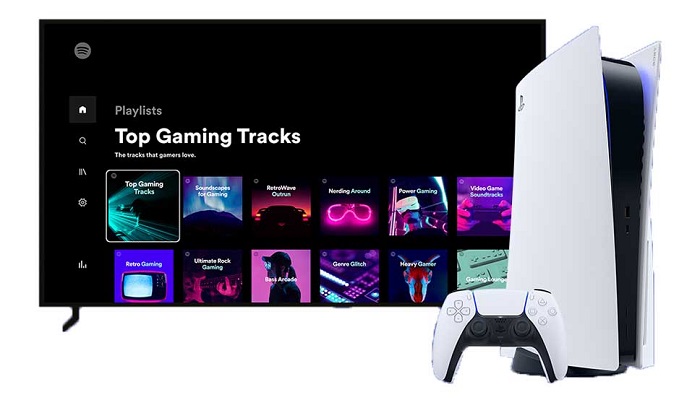
Spotify: This is arguably the most popular choice for PS5 gamers. The Spotify app on PS5 offers a robust experience, allowing you to access your entire library, playlists, and discover new music. Its deep integration means you can control playback, skip tracks, and adjust volume directly from the PS5's Control Center, without ever leaving your game.
Apple Music: For those invested in the Apple ecosystem, Apple Music provides a similar level of integration. You can stream millions of songs, access curated playlists, and enjoy personalized recommendations. Like Spotify, its controls are accessible through the Quick Menu, making it easy to manage your music on the fly.
While these are the primary dedicated apps, you can also leverage other services to an extent, though perhaps with less seamless integration. For example, some users have found ways to utilize services like YouTube Music or even specific web-based audio streams through the PS5's web browser, though this method can be less optimized for background playback and control.
How Do I Control Music Volume Without Leaving My Game?
Controlling your music volume and other playback options on your PS5 while deep into a gaming session is designed to be quick and unobtrusive. Sony built the Control Center specifically for this purpose. Here is how you do it:
Press the PlayStation Button: A single, quick press of the PS button on your DualSense controller will bring up the Control Center at the bottom of your screen. This overlay allows you to access various system functions without fully exiting your game.
Navigate to the Music Card: In the Control Center, you will see several cards. Look for the 'Music' card (or the card corresponding to your active music app, like Spotify or Apple Music).
Adjust Playback: From this card, you can:
Play/Pause your music.
Skip to the next or previous track.
Adjust the music volume independently of the game audio. This is crucial for finding that perfect balance between your game's sound effects and your background tunes.
Adjust Overall Sound Mix: You can also navigate to the 'Sound' card within the Control Center to fine-tune the overall audio output, including the balance between game audio and chat audio, and the music volume. This level of control is essential for busy adults who often game with friends and need to manage multiple audio sources efficiently.
This quick access ensures you maintain immersion and do not have to disrupt your gameplay flow just to change a song or tweak a volume level.
Can I Use Apple Music or YouTube Music on PS5?
Yes, you absolutely can use Apple Music on your PS5. Apple Music has a dedicated application available for download directly from the PlayStation Store. Once installed, you can log in with your Apple ID and access your full library, playlists, and all the features you expect from the service. It integrates nicely with the PS5's Control Center, allowing for easy playback management without interrupting your game. This is great news for the growing number of US gamers who are cross-platform users and want their subscriptions to work everywhere.
For YouTube Music, the situation is a little different. As of now, there is no dedicated YouTube Music app for the PS5. However, you are not entirely out of luck. You can often access YouTube Music through the PS5's built-in web browser. While this method is functional for listening to music, it is generally less optimized for background playback and quick controls compared to the native Spotify or Apple Music apps. You might find managing it a bit clunkier, and it might require leaving your game more frequently to interact with the browser tab. For casual listening, it works, but for a seamless experience, Spotify or Apple Music are the preferred choices.
Why Should I Play Music While Gaming?
Playing music while gaming offers a surprising array of benefits that can significantly enhance your overall experience, especially for the average US gamer who seeks relaxation, fun, and optimal performance.
Enhanced Immersion and Atmosphere: Custom soundtracks can deepen your connection to a game. Imagine exploring a vast open world with epic orchestral scores, or diving into a high-stakes competitive match with an adrenaline-pumping electronic playlist. It personalizes the experience far beyond the game's default audio.
Stress Relief and Relaxation: After a long day of work or family responsibilities, gaming is often a primary stress reliever. Pairing it with calming lo-fi beats or familiar tunes can amplify that sense of relaxation, helping you unwind more effectively. This is particularly relevant for the ~36-year-old gamer balancing life with their hobby.
Improved Focus and Performance: For some gamers, specific types of music can act as a focus aid, drowning out distractions and helping them concentrate on complex gameplay mechanics or strategic decisions. Think upbeat tunes for grinding or intense tracks for boss battles. It is like having a personal coach for your brain.
Combating Repetitive Tasks: If you are engaged in repetitive tasks like grinding for loot, farming resources, or completing mundane side quests, background music can make the process far more enjoyable and less tedious.
Social Gaming Enhancement: For those who use gaming as a social outlet, sharing music or having a collective playlist running in the background during co-op sessions can add another layer of camaraderie and fun to the experience, especially when using Discord for cross-play communication.
Ultimately, playing music while gaming is about tailoring your entertainment to your exact preferences, making every minute you spend on your PS5 count.
Are There Any Performance Impacts When Playing Music?
This is a common and valid concern for gamers who prioritize smooth performance and optimal frame rates. Fortunately, the performance impact of playing music on your PS5 while gaming is generally minimal to negligible. Here is why:
Dedicated Hardware: The PS5 is a powerful console with a custom AMD RDNA 2 GPU and an 8-core AMD Zen 2 CPU, alongside a blazing-fast SSD. It is designed to handle multiple tasks concurrently. Music playback applications run in the background, utilizing a very small portion of the system's resources.
Optimized Apps: Apps like Spotify and Apple Music are specifically optimized for console background playback. They are not demanding applications and consume minimal CPU, RAM, or network bandwidth compared to the game itself.
Modern OS Design: The PS5's operating system is built for multitasking. It efficiently manages resource allocation, ensuring that the primary application (your game) always gets priority for processing power and memory. This is a core aspect of modern console design, differentiating it from older systems where background tasks might have been more taxing.
While the impact is generally minimal, there are a few edge cases to consider:
Extremely Demanding Games: If you are playing a graphically intensive game that pushes the PS5 to its absolute limits, there is a theoretical chance of a minor, almost imperceptible performance dip. However, this is rare and would likely only manifest as a slight decrease in frame rate in very specific, resource-heavy scenes.
Network Bandwidth: If your internet connection is already struggling and you are playing an online multiplayer game while streaming music at a high quality, there could be a minor impact on network latency (ping). This is more of a network issue than a console performance issue, though. Most modern connections can handle both without a hitch.
For the vast majority of games and setups, you can enjoy your background music without worrying about sacrificing your gaming performance. The PS5 is more than capable of handling both simultaneously.
Tips for Busy Gamers: Optimizing Your PS5 Music Experience
For busy adults who carve out precious hours for gaming, efficiency and a smooth experience are paramount. Here are some pro tips to optimize playing music on your PS5 while gaming:
Create Dedicated Gaming Playlists: Before you even sit down to play, curate playlists for different moods or game types. Have one for intense action, another for chill exploration, and perhaps a specific one for social gaming with friends. This saves time fumbling with music during your limited play window.
Master the Control Center: Practice using the PS button to quickly access the Control Center. Knowing exactly where the music card and sound mixer are located will allow you to adjust volume or skip tracks in seconds, keeping you immersed in your game.
Experiment with Audio Mix: Do not just set and forget. Spend a few minutes at the start of a session finding the ideal balance between game audio, music volume, and even chat audio if you are playing with friends. Some games have dynamic music that clashes with background tunes, while others complement them perfectly. Personalization is key for a focused gaming experience.
Consider Premium Subscriptions: If you are frequently streaming music, a premium subscription to Spotify or Apple Music eliminates ads, offers higher audio quality, and allows for offline playback (though not always relevant for PS5 streaming, it enhances the overall service). For gamers who value uninterrupted relaxation, this is a worthy investment.
Utilize Your Headphones: For the best audio experience and to avoid disturbing family members, use a good quality gaming headset. This allows you to fully appreciate both the game's sound design and your chosen music, often providing clearer separation and better overall immersion. Many headsets offer their own volume controls, adding another layer of customization.
Leverage PS5 Profiles: If multiple people use your PS5, ensure each person has their own profile linked to their respective music service account. This keeps playlists and preferences separate, making it easier to jump into a personalized session.
By implementing these tips, you will maximize your enjoyment and minimize any friction, making your gaming time even more rewarding.
Troubleshooting Common PS5 Music Playback Issues
Even with the best systems, sometimes a hiccup can occur. If you are experiencing issues with playing music on your PS5 while gaming, here are some common problems and their quick fixes:
Music Not Playing/App Freezing:
Solution: Close and restart the music application. Highlight the app on the home screen, press the Options button, and select 'Close Application'. Then relaunch it.
Solution: Restart your PS5. A full system restart can often resolve temporary software glitches.
Poor Audio Quality/Stuttering:
Solution: Check your internet connection. Streaming music requires a stable connection. Run a connection test in PS5 settings (Settings > Network > Connection Status > Test Internet Connection). If it is slow, try restarting your router.
Solution: Ensure no other bandwidth-heavy activities are occurring on your network (e.g., large downloads, multiple 4K streams).
Music Volume Too Low/High Compared to Game:
Solution: Adjust the audio mix via the Control Center. Press the PS button, go to the 'Sound' card, and fine-tune the balance between 'Music' and 'Game' audio. Remember, some games have very loud default audio, so you might need to adjust more significantly.
Solution: Check your headset or TV volume settings. Ensure no external volume controls are set too low or too high.
Can't Find Music App in Control Center:
Solution: Make sure the music app is actually running in the background. If it is paused or closed, it might not appear in the Control Center. Launch it first, start some music, then launch your game.
Solution: Ensure the app is fully updated. Check for updates in the PlayStation Store or by highlighting the app, pressing Options, and selecting 'Check for Update'.
Login Issues with Music Service:
Solution: Verify your account credentials. Double-check your username and password. Try logging in on another device to ensure your account is active and working.
Solution: Check the service's status. Occasionally, Spotify or Apple Music might have server issues. A quick search online can confirm if others are experiencing similar problems.
Most issues are minor and easily resolved with a few simple steps. The key is to systematically check your settings and connections.
Maximizing Immersion: Pairing Music Genres with Games
The right music can transform a good game into an unforgettable experience. Here is how you can strategically pair music genres with your gaming sessions for maximum immersion:
Open-World RPGs (e.g., Elden Ring, Assassin's Creed):
Music: Epic orchestral scores, ambient soundscapes, folk music, or instrumental rock. These genres can enhance the sense of discovery, scale, and adventure.
Why: They complement the vast environments and long exploration segments without distracting from narrative or quest markers.
Competitive Multiplayer (e.g., Call of Duty, Apex Legends):
Music: High-energy electronic dance music (EDM), drum and bass, aggressive rock, or instrumental hip-hop. Upbeat, fast-paced tracks can boost focus and adrenaline.
Why: The consistent beat and intensity can help maintain rhythm and keep you sharp during fast-paced encounters, without interfering with crucial in-game audio cues.
Cozy Games & Life Sims (e.g., Animal Crossing, Stardew Valley):
Music: Lo-fi hip-hop, gentle indie folk, ambient electronica, or classical piano. Relaxing, low-key music fits the vibe perfectly.
Why: These genres enhance the calm, stress-free nature of these games, perfect for unwinding after a busy day.
Story-Driven Adventures (e.g., God of War, The Last of Us):
Music: Carefully chosen instrumental soundtracks, cinematic scores, or even silence during critical narrative moments. Sometimes the game's own score is best, but if you must, ensure your choice complements the tone.
Why: You want music that enhances, not detracts from, the narrative weight and emotional impact. Less is often more here.
Grinding/Repetitive Tasks:
Music: Podcasts, audiobooks, or your absolute favorite, most familiar playlists. Music you do not have to think about.
Why: Keeps you entertained and motivated through the less exciting parts of gaming without demanding your full attention.
The key is experimentation. What works for one person might not work for another. Spend some time finding your perfect harmony between game and music.
Conclusion
There you have it! Playing music on your PS5 while gaming is not just a nice-to-have feature; it is a game-changer for enhancing immersion, relieving stress, and even boosting focus. For US gamers balancing life's demands with their passion, optimizing these experiences is crucial. With native apps like Spotify and Apple Music, and the intuitive Control Center, getting your perfect soundtrack has never been easier. We have covered everything from initial setup and volume control to troubleshooting and advanced tips for busy adults. Embrace the power of personalized audio and make every gaming session truly yours.
What is your go-to gaming playlist, or what is your biggest challenge when trying to multitask on your PS5? Comment below!
Frequently Asked Questions (FAQ)
Can I use a USB drive to play music on PS5 while gaming?
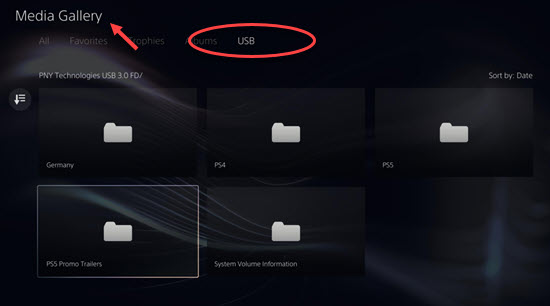
Unfortunately, the PS5 does not natively support playing local music files from a USB drive in the background while you are gaming. You will need to use streaming services like Spotify or Apple Music for background audio.
Does playing music in the background affect my PS5's performance or frame rate?
For the vast majority of games, playing music in the background will have a negligible impact on your PS5's performance or frame rate. The console is powerful enough to handle both tasks efficiently without noticeable slowdowns.
How do I stop music from playing if I need to hear game audio only?
Simply press the PlayStation button on your DualSense controller to open the Control Center, navigate to the 'Music' card (or your active music app), and select 'Pause' or 'Stop'. You can then resume it whenever you wish.
Can I play music without a premium subscription to Spotify or Apple Music?
Yes, you can use the free tiers of services like Spotify, though you will experience advertisements. For an uninterrupted and ad-free experience while gaming, a premium subscription is recommended for both Spotify and Apple Music.
What is the best way to balance game audio and music audio?
The best way is to use the PS5's Control Center. Press the PlayStation button, go to the 'Sound' card, and use the sliders to adjust the individual volumes for your game and your music app. Experiment to find your perfect mix.
Can I use my phone to control the music playing on my PS5?
Yes! If you are using Spotify, you can leverage Spotify Connect from your phone to control the music playback on your PS5. For Apple Music, you would typically use the PS5 controller, but some third-party apps might offer limited control.
Why is my music app not showing up in the PS5 Control Center?
If your music app is not showing in the Control Center, ensure it is actually running and actively playing music in the background. If it's closed or paused for an extended period, it might disappear until you restart playback.
Seamless PS5 music integration, Spotify and Apple Music playback, in-game volume control, YouTube Music via browser, multitasking audio tips, troubleshooting guide, enhanced gaming immersion, balancing game and music audio.
35



How To PLAY MUSIC On PS5 While Playing A Game UPDATED 2026 YouTube . How To Play Music On PS5 While Playing Games Easy Guide YouTube . How To Play Songs While Playing Games On PS5 YouTube . PS5 How To Play Music While Playing Games Tutorial 3 Ways 2025 . How To Play Music With A USB On PS5 Full Tutorial YouTube

PS5 How To Play Spotify Music While Playing Games Tutorial Easy . How To Play USB Media On PS5 Movies Music Photos Play Music From Usb On Ps5 05042026 . Play Spotify On PS5 While Playing Games In Two Ways Macsome Play Spotify On Ps5 . Spotify PS5 How To Play Spotify On PS5 Play Spotify Ps5 While Gaming . How To Access Media From A USB Drive On Your PS5 Shuffle And Repeat Toggle In The Ps5 S Music Player.JPG



PS5 How To Play Music While Playing Games Spotify Apple Music USB . How To Listen To YouTube Music On PS5 While Gaming Play Music On Ps5 From Usb . PS5 Apple Music 2021 10 4201551 . 3 Ways To Stream YouTube Music While Playing PS5 NoteBurner Play Youtube Music On Ps5 . How To Get Spotify On PS5 To Listen To Music On Console Best Method


How To Listen To Music On PS5 While Playing Games YouTube Hqdefault . How To Listen To YouTube Music On PS5 While Gaming How To Play Youtube Music On Ps5 . How To Play Music Over PS5 Party Or Game Chat Play Phone Audio YouTube . How To Play Apple Music On PS5 Updated Apple Music On Ps5 . How To Play And Control Apple Music On PS5 Updated Apple Music Ps5


Can You Play YouTube Music On PS5 While Gaming Play Youtube Music On Ps5 . 4 Ways To Listen To Music On PS5 While Playing Games Best Tutorial . How To Use Apple Music On PS5 Android Central . How To Play Your Own Music In GTA 5 PS5 2b38b969 3904 43c2 8c51 . How To Play YouTube Music On PS5 While Playing Games KeepMusic Play Youtube Music On Ps5



PS5 Players Getting 2026 Packed With Highly Anticipated Games Ps5 Games 2026 . How To Play Apple Music On PS5 Apple Music On Ps5 . How To Play YouTube Music On PS5 While Playing Games KeepMusic Play Youtube Music On Ps5 By Usb . Amazon Music PS5 How To Stream Amazon Music On PS5 Play Amazon Music On Ps5 . PS5 Owners Can Get Up To Six Months Of Apple Music For Free Apple Music Ps5 Scaled



How To Transfer Songs From SoundCloud To PS5 Sidify Add Soundcloud Music To Ps5 . How To Play Music On PS5 While Playing Using Youtube Best Tutorial . How To Listen To YouTube Music On PS5 While Gaming Youtube Music On Ps5 Thumbnail . How To Play YouTube Music On PS5 TunePat Youtube Music On Ps5 . How To Play Music On PS4 While Playing Games YouTube