Are you a seasoned gamer balancing work and family, looking for new ways to connect and enhance your Roblox experience? The ability to use a facecam in Roblox has become a game-changer, allowing for more personal interaction and exciting content creation. This comprehensive guide is tailored for the adult gamer who values practical solutions and clear steps. We'll walk you through everything you need to know about enabling facecam on Roblox, from basic requirements and privacy settings to advanced tips for optimizing your setup. Whether you're aiming to stream, create engaging content, or simply add a new layer of immersion to your social gaming, understanding how to get facecam on Roblox is crucial. We'll cover common issues, provide troubleshooting advice, and ensure you can get your facecam up and running smoothly, without the hype, just solid information. Dive in to unlock a more expressive and connected way to play your favorite Roblox experiences.
How do I enable facecam on Roblox?
To enable facecam on Roblox, first ensure you're 13 years or older and have verified your age with a government-issued ID in your Roblox account settings. Next, go to 'Privacy' settings and toggle on 'Video Chat (Face Animation)' and 'Voice Chat'. Finally, launch a compatible Roblox game and look for a camera icon on your screen to activate it, granting camera permissions if prompted.
What are the age requirements for Roblox facecam?
The age requirement for Roblox facecam (Live Animation) is strictly 13 years or older. Users must complete an age verification process, typically involving a government-issued ID scan, to confirm their age before being able to enable and use the facecam and voice chat features within Roblox.
Does Roblox facecam work on mobile devices like phones and tablets?
Yes, Roblox facecam is now available on compatible mobile devices, including iPhones and Android phones or tablets. You still need to meet the 13+ age verification requirement and enable the feature in your privacy settings. Ensure your mobile device has a functioning front-facing camera and your Roblox app is updated.
Is Roblox facecam safe for my privacy?
Roblox states that the facial animation data used for facecam is processed in real-time to animate your avatar and is immediately deleted afterward. Roblox does not store or share your raw webcam video feed. However, always be mindful of your surroundings and what's visible on your camera when using any facecam feature for personal privacy.
Why is my Roblox facecam not detecting my expressions?
If your Roblox facecam isn't detecting expressions well, check your lighting. Ensure your face is evenly and brightly lit, avoiding shadows or strong backlighting. Position your webcam directly in front of you at eye level. Also, confirm that Roblox has camera access permissions and that your internet connection is stable, as these can affect real-time tracking.
Can I use Roblox facecam for streaming on platforms like Twitch or YouTube?
Yes, absolutely! While Roblox's facecam animates your in-game avatar, many streamers use this feature in conjunction with their streaming software (like OBS Studio). You can capture your Roblox gameplay with the animated avatar and simultaneously run a separate facecam feed of your actual face for your stream, blending both for dynamic content creation.
What kind of webcam do I need for Roblox facecam?
You need a standard, functioning webcam compatible with your device. Most modern built-in laptop cameras and external USB webcams are sufficient. High-end cameras aren't strictly necessary for basic functionality, but better quality cameras can provide clearer input, which can improve the accuracy of the facial tracking for your avatar.
Hey fellow gamers! If you're anything like me, you love diving into Roblox to unwind after a long day, connect with friends, or even dabble in creating some cool content. For us adult gamers who juggle jobs, families, and life's countless quests, gaming isn't just a pastime; it's a valuable slice of relaxation, a way to build skills, and a prime spot for social play. And let's be honest, staying current with the latest gaming trends, especially those that enhance our experience without breaking the bank or demanding endless setup time, is always a win. One of the hottest trends captivating the Roblox universe right now is the ability to use a facecam directly within the game. This feature is a game-changer for those who want to add a personal touch to their avatar's expressions, create more engaging content, or simply feel more connected with their in-game friends.
You might be thinking, "How on earth do I get facecam on Roblox? Is it complicated? Will it hog my system resources?" These are all valid questions, especially for those of us who prioritize performance and value for money. The good news is that Roblox has made strides to integrate this feature relatively seamlessly. This guide is designed to cut through the noise and provide clear, actionable steps for getting your facecam up and running. We'll tackle everything from the initial setup to troubleshooting common snags, ensuring you can quickly enhance your Roblox experience and jump back into the fun. Let's make your Roblox avatar as expressive as you are!
What is Roblox Facecam and Why Do Gamers Want It?
Roblox Facecam, also known as Avatar Live Animation, is a feature that allows your Roblox avatar's facial expressions to mirror your own in real-time. Using your webcam, the system tracks your head movements and facial expressions—like smiles, frowns, blinks, and nods—and applies them to your avatar. This technology is a significant leap forward in creating more immersive and personalized social experiences within the platform. For many US gamers, particularly those balancing life and leisure, the appeal is clear: it adds a deeper layer of connection and authenticity to social gaming. It's not just about playing; it's about *being* there, truly expressing yourself.
Why is this feature trending? With 87% of US gamers regularly engaging with their favorite titles and spending an average of 10+ hours a week, social interaction and content creation are huge drivers. Mobile gaming, as we know, dominates a large segment of this, and social games like Roblox thrive on connectivity. Facecam allows aspiring streamers to create more dynamic content and everyday players to enjoy more expressive interactions with friends. It caters to the desire for skill-building in digital content and offers a fresh way to relax and have fun.
What Are the Requirements to Use Facecam on Roblox?
Before you can unleash your avatar's inner expressive self, there are a few prerequisites to meet. Roblox has implemented these to ensure a safe and secure environment for its vast user base. Meeting these requirements is typically straightforward for most adult gamers.
- Age Verification: You must be 13 years or older. This is a crucial step for both Facecam and Voice Chat features. Roblox requires you to verify your age using a valid government-issued ID.
- Enabled Voice & Video Chat: Once age-verified, you need to enable these communication features in your Roblox Privacy Settings.
- Compatible Webcam: You'll need a functioning webcam connected to your device. Most modern laptops come with built-in cameras, and external USB webcams are widely supported.
- Stable Internet Connection: Real-time facial tracking requires a consistent internet connection to transmit data smoothly without lag.
- Roblox Client: Ensure your Roblox game client is up-to-date to access the latest features and optimizations.
For gamers balancing budgets, remember that a high-end camera isn't necessary to get started. Many budget-friendly webcams deliver perfectly acceptable performance for facecam, making it an accessible upgrade for your gaming setup.
How Exactly Do I Enable Facecam on Roblox Step-by-Step?
Getting your facecam activated might seem like a maze, but it's actually quite simple. Follow these steps, and you'll be expressing yourself through your avatar in no time:
- Verify Your Age:
If you haven't already, navigate to your Roblox Account Settings. Under the 'Personal' section, look for 'Verify My Age'. You'll need to upload a photo of a government-issued ID (like a driver's license or passport) and take a live selfie for comparison. This process is secure and usually takes a few minutes.
- Enable Voice & Video Chat:
Once your age is verified, go to your Roblox Account Settings, then select 'Privacy'. Scroll down until you find the 'Beta Features' or 'Communication' section. Here, you should see options to enable 'Voice Chat' and 'Video Chat (Face Animation)'. Toggle both of these ON. You might be prompted to confirm your choice.
- Launch a Compatible Game:
Not all Roblox experiences support facecam yet. Look for games that explicitly mention 'Voice Chat' or 'Live Animation' support. Many social hangout games and role-playing experiences are good places to start.
- Activate Facecam In-Game:
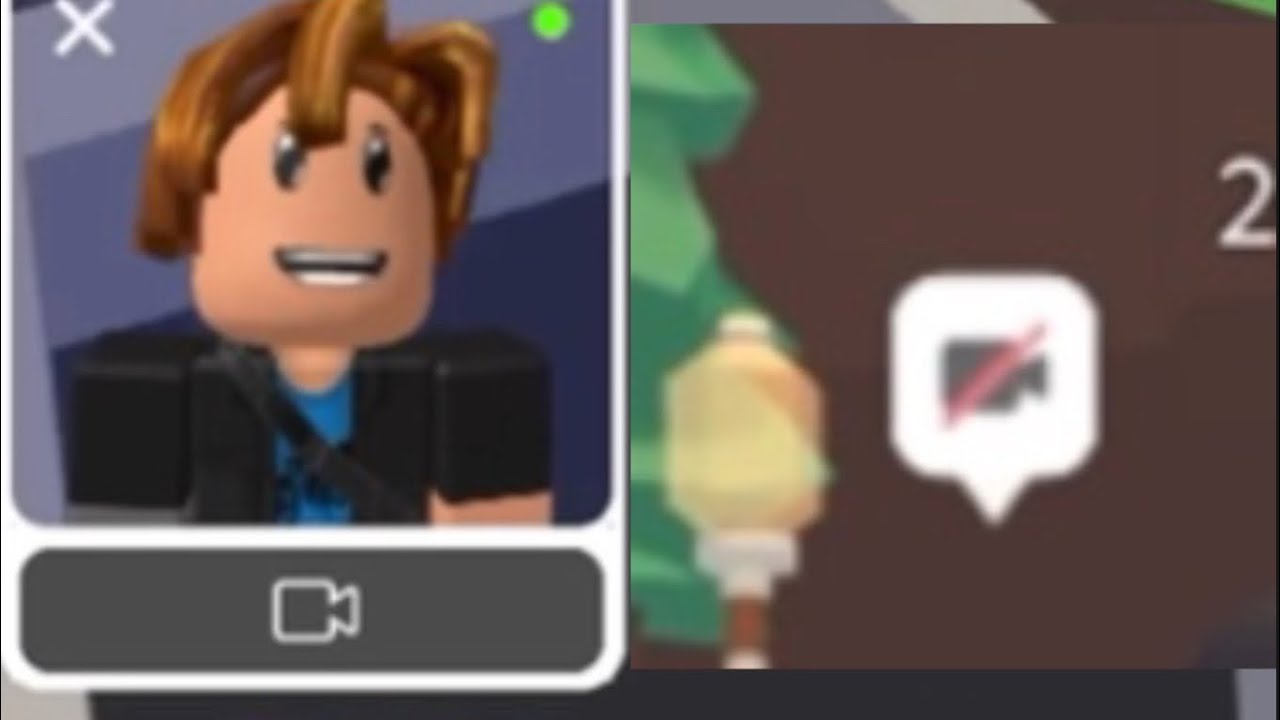
Once in a supported game, look for a small camera icon near your avatar's health bar or username. Clicking this icon will typically toggle your facecam on or off. You may need to grant Roblox permission to access your webcam if it's your first time.
- Adjust and Test:
Once enabled, test it out! Make different facial expressions and observe how your avatar reacts. Ensure your face is well-lit and directly facing the camera for the best tracking results.
This straightforward process ensures that even busy gamers can quickly integrate new features without a steep learning curve.
Are There Any Age Restrictions or Privacy Concerns for Roblox Facecam?
Yes, there are significant age restrictions and privacy considerations, and Roblox takes them very seriously. As mentioned, the facecam feature, like Voice Chat, is strictly for users aged 13 and older who have completed the ID verification process. This measure is in place to protect younger users and ensure a more mature communication environment.
From a privacy standpoint, Roblox states that the facial animation data (the mapping of your expressions to your avatar) is deleted in real-time after processing and is not stored or shared. However, it's crucial to understand that your actual webcam feed is being analyzed by Roblox's system. Always be mindful of your surroundings and what's visible in your camera's background when using any facecam feature. Roblox also offers robust privacy settings, allowing you to control who can communicate with you and what features are enabled. Regularly reviewing these settings, especially after updates, is a smart move for any gamer concerned about their digital footprint.
How Can I Optimize My Facecam Setup for Best Performance on Roblox?
Even with an easy setup, optimizing performance ensures a smooth, lag-free experience. For gamers who prioritize performance optimization and want to get the most out of their hardware without constant upgrades, these tips are key:
- Good Lighting: Ensure your face is evenly lit. Natural light from a window or a dedicated ring light can make a huge difference in how well your expressions are tracked. Avoid strong backlighting or shadows on your face.
- Camera Position: Position your webcam at eye level and directly in front of you. This ensures the best angle for facial tracking.
- Stable Internet: A wired Ethernet connection is always superior to Wi-Fi for stability, especially when streaming real-time data. If Wi-Fi is your only option, ensure you're close to your router and minimize other demanding network activities.
- Close Background Apps: Close any unnecessary programs running in the background that might be consuming CPU, RAM, or bandwidth. This frees up resources for Roblox and your webcam software.
- Update Drivers: Keep your webcam drivers and graphics card drivers updated. Outdated drivers can lead to performance issues or compatibility problems.
- Roblox Graphics Settings: If you experience lag, try reducing some of Roblox's in-game graphics settings. While it might slightly impact visual fidelity, it can significantly improve overall performance, especially when running facecam.
By tweaking these aspects, you can ensure your facecam experience is as fluid and enjoyable as possible, allowing you to focus on the fun without performance hitches.
What Are the Best Practices for Using Facecam in Roblox Games?
Using facecam effectively goes beyond just enabling the feature. It's about enhancing your social play and content in a meaningful way. Here are some best practices, especially relevant for adult gamers who value genuine interaction and respectful online environments:
- Be Aware of Your Expressions: Remember that your avatar is mirroring you. Be mindful of your expressions, especially in social or public games. A simple smile can convey friendliness!
- Context Matters: Use facecam when it adds to the experience. In a casual hangout game, it can boost social interaction. In a competitive game, it might be less relevant unless you're streaming.
- Content Creation: If you're using facecam for streaming or video creation, practice conveying emotions clearly. This makes your content more engaging and relatable. Many gamers are influenced by creators, and authentic reactions are gold.
- Respect Others: Not everyone uses or wants to see facecam. Be respectful of other players' preferences and privacy.
- Moderation: Roblox has a moderation system for expressions, especially for younger audiences. Be aware of the community guidelines to avoid any issues.
Embracing these practices helps foster a positive and engaging environment, reflecting the social gaming trends we see today.
Can I Use Facecam on Mobile Devices for Roblox?
Yes, as of recent updates, Roblox Facecam (Live Animation) is increasingly available on compatible mobile devices! This is fantastic news for the vast number of US gamers who primarily play on their phones or tablets. Mobile dominance in gaming is a clear trend, and Roblox is actively working to bring parity between PC and mobile experiences.
The requirements remain similar: you'll need to be age-verified (13+) and have Voice & Video Chat enabled in your privacy settings. Your mobile device must have a front-facing camera, which nearly all smartphones do. Performance might vary based on your device's processing power and internet connection, but the core functionality is there. This cross-play capability is a huge win, allowing you to connect with friends and express yourself seamlessly, whether you're at your desk or on the go.
Troubleshooting: Common Facecam Issues on Roblox and How to Fix Them.
Even with the best intentions, technology can sometimes throw a curveball. Here are some common issues you might encounter with Roblox Facecam and straightforward solutions:
- Facecam Option Missing:
Double-check your age verification status. Ensure you are 13+ and that your ID has been successfully verified. Also, confirm that both 'Voice Chat' and 'Video Chat (Face Animation)' are enabled in your Privacy Settings.
- Camera Not Detected or Working:
Make sure your webcam is plugged in correctly (for external cameras). Check your operating system's privacy settings to ensure Roblox has permission to access your camera. Try restarting Roblox, or even your computer/mobile device. Sometimes, a simple reboot is all it takes.
- Poor Tracking or Laggy Expressions:
Review the optimization tips: improve lighting, ensure your face is clear, close background applications, and check your internet connection stability. Low frame rates in Roblox itself can also affect facecam smoothness.
- Roblox Crashes When Facecam is On:
This could indicate a resource issue. Reduce Roblox graphics settings, update your graphics drivers, and ensure your system meets minimum requirements. If it persists, report the bug to Roblox support.
- Expressions Don't Match:
Ensure your face is well-lit and unobstructed. Sometimes glasses or unique facial hair can slightly affect tracking, but typically, good lighting resolves most discrepancies.
These practical solutions aim to get you back into the game quickly, minimizing frustration for busy gamers.
Beyond Roblox: How Facecam Skills Translate to Other Platforms.
Mastering facecam usage in Roblox isn't just about enhancing your in-game experience; it's also a valuable skill that translates directly to other popular gaming and social platforms. For those who enjoy building skills online or even considering dabbling in content creation, this is a significant step.
- Streaming Platforms: Whether you're streaming on Twitch, YouTube, or Facebook Gaming, the ability to integrate your facecam effectively is crucial for viewer engagement. The principles of good lighting, camera positioning, and expressive communication learned in Roblox apply universally.
- Video Calls & Meetings: In a world where remote work and online communication are commonplace, knowing how to present yourself well on camera is a professional asset. Your practice in Roblox can make you more comfortable and confident in virtual meetings.
- Social Media Content: Creating short-form video content for TikTok, Instagram Reels, or YouTube Shorts often benefits from genuine facial reactions and expressions.
- Virtual Reality (VR) & Augmented Reality (AR): As VR experiments and AR technologies evolve, facial tracking will become even more integral to immersive experiences. Your familiarity with facecam in Roblox sets you up for future trends.
These transferable skills offer more than just fun; they provide real-world value for communication and digital presence in 2026 and beyond.
In conclusion, integrating facecam into your Roblox experience is a fantastic way to elevate your social play, express yourself more authentically, and even dip your toes into content creation. For us gamers who navigate the demands of modern life, the steps are straightforward, and the benefits—from enhanced connection to transferable skills—are substantial. Remember to always prioritize privacy, optimize your settings for the best performance, and enjoy the added layer of immersion. What's your biggest gaming challenge when it comes to new features? Comment below!
FAQ Section
Q: Is Roblox Facecam free to use?
A: Yes, the Roblox Facecam feature itself is free to use once you meet the age verification requirements and have a compatible webcam. There are no additional Robux purchases needed for the core functionality.
Q: What if my facecam is not showing up in Roblox settings?
A: First, ensure your webcam is properly connected and recognized by your operating system. Check your computer's privacy settings to grant Roblox permission to access the camera. Restarting your computer or Roblox client can often resolve detection issues. Also, verify you've completed the age verification for 13+ and enabled video chat in Roblox privacy settings.
Q: Does Roblox store my facecam video data?
A: No, Roblox states that the facial animation data used to animate your avatar is processed in real-time and then immediately deleted. It is not stored or shared. Your raw webcam video feed is not recorded by Roblox.
Q: Can I use Facecam with Roblox on my iPhone or Android device?
A: Yes, Roblox Live Animation (Facecam) is available on compatible iOS and Android mobile devices that have a front-facing camera. Ensure your Roblox app is updated to the latest version, and you've completed age verification (13+) and enabled video chat in privacy settings.
Q: Why is my avatar's face not matching my expressions well?
A: Poor tracking often stems from lighting issues. Ensure your face is well-lit and evenly illuminated, avoiding strong backlighting or shadows. Position your camera directly in front of you at eye level. Closing background applications can also free up system resources for smoother tracking.
Q: Can I turn off Facecam whenever I want in a game?
A: Absolutely. While in a game that supports Facecam, there should be a small camera icon on your screen, usually near your avatar's UI elements. You can toggle this icon on or off at any time to activate or deactivate your Facecam feature during gameplay, giving you full control over your privacy and expression.
Unlock Roblox Facecam for expressive play and content creation, verify age 13+ and ID for Voice & Video Chat, enable in Roblox privacy settings, use a compatible webcam and stable internet, optimize performance for smooth streaming, understand privacy controls, troubleshoot common issues like camera not detected or poor quality, explore advanced tips for streaming platforms.
35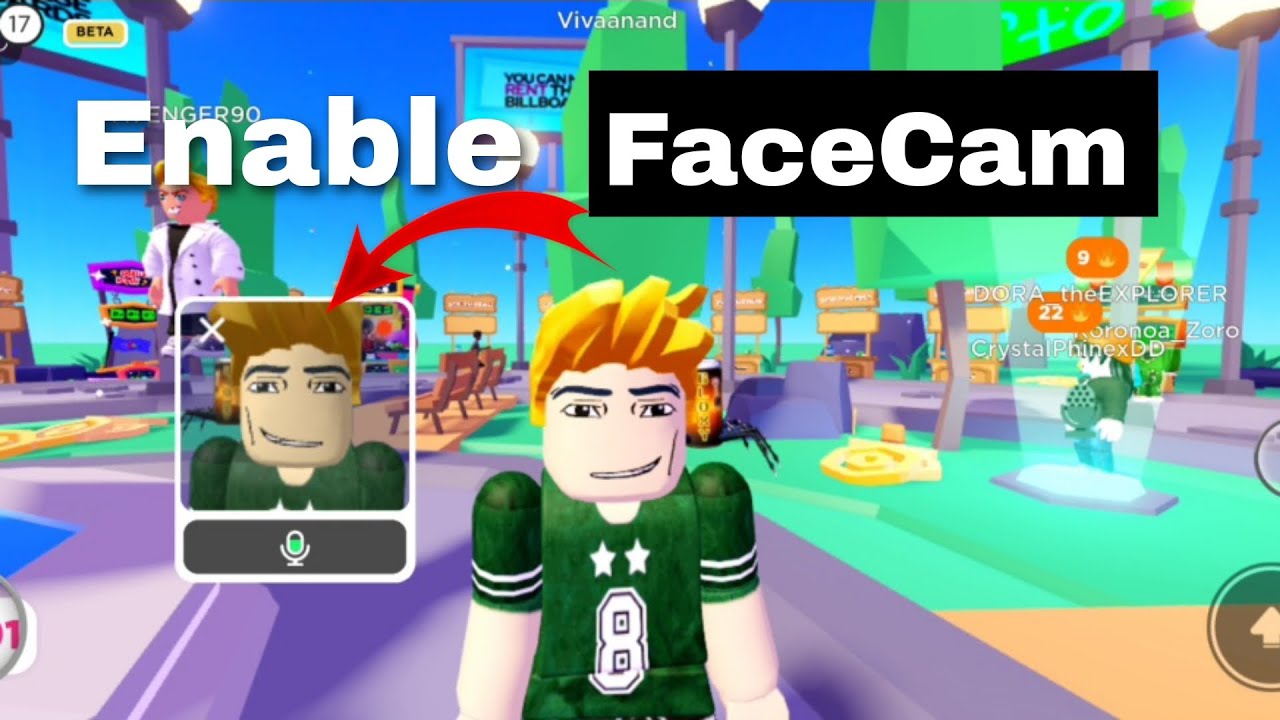


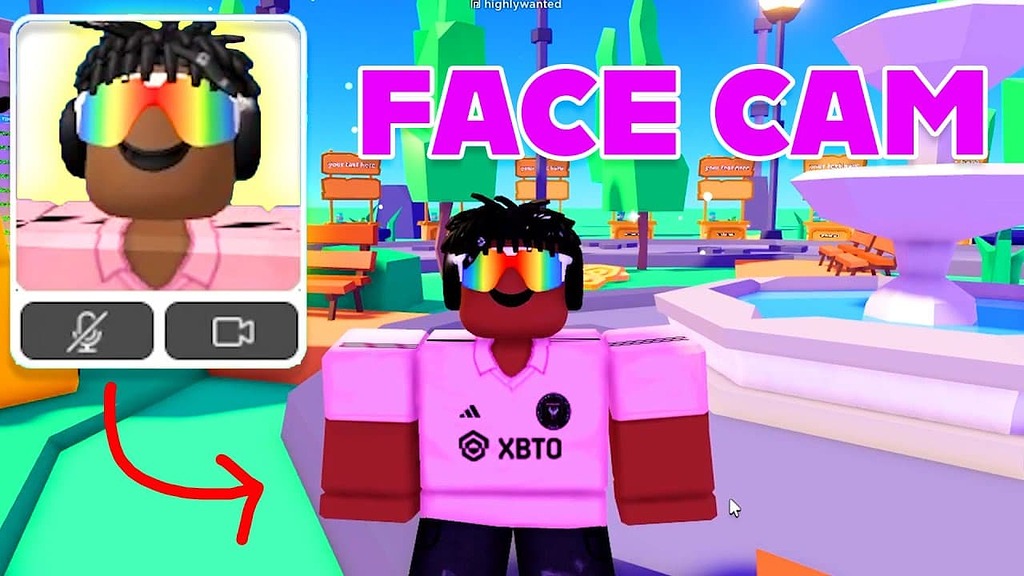

How To Get Facecam On Roblox Mobile New Feature Enabled Roblox . How To Get Facecam On Roblox Tutoriul For Roblox Facecam . Unlock The View Roblox Free Cam Guide . How Can I Make Facecam Scripting Support Developer Forum Roblox 2 1024x576 . How To Turn On Roblox Face Tracking 2026 Enable Roblox Facial


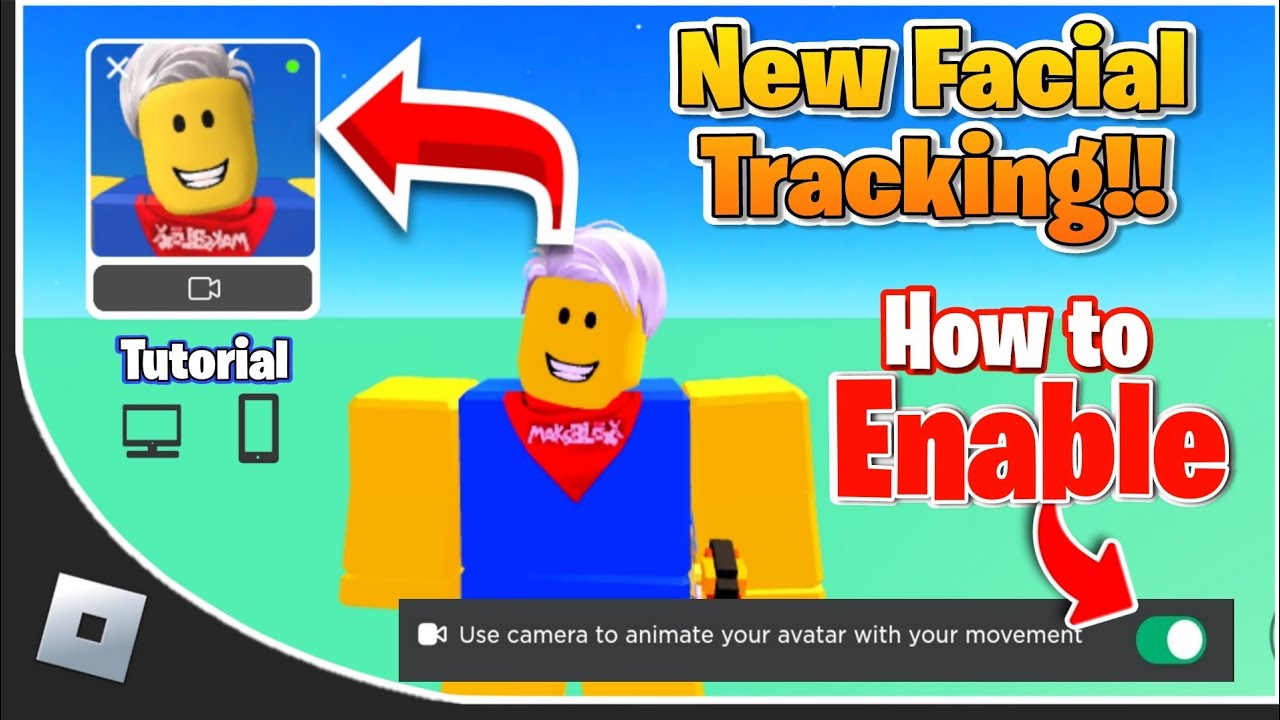
How To Enable Roblox Facecam NEW YouTube . How To Get Facecam On Roblox PLS DONATE YouTube . How To Get Voice Chat Face Tracking And Facecam Roblox Guide YouTube . How To Enable Roblox Face Camera Full Guide YouTube . UPDATE How To Get Facial Tracking On Roblox Enable Roblox Face

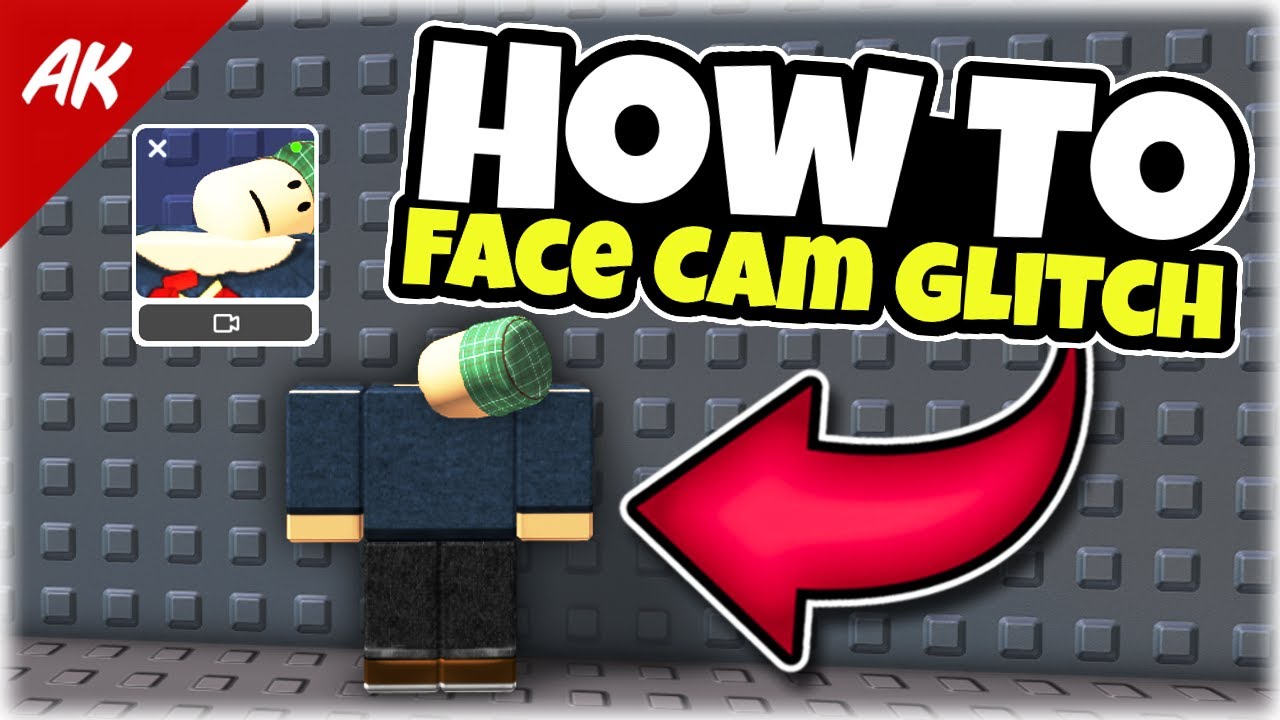


ROBLOX FACE CAM IS HERE WHAT IT IS HOW TO ENABLE IT YouTube . How To Face Cam Glitch In Roblox YouTube . How To Use Camera In Roblox YouTube . How To Get FREE Camera Mode In Roblox 2026 Tutorial YouTube . Roblox Face Tracking Express Yourself Enable Face Tracking On Roblox Step 13



How To Get Face Cam In Roblox Prima Games Roblox Enable Face Cam Settings . How To Get Face Came On Roblox Roblox Facecam YouTube . How To Get Use Face Tracking On Roblox Camera Update Gamer Tweak How To Get Use Roblox Face Tracking. Roblox How To Get FaceCam Feature Item Level Gaming For Free Roblox Face 300x153 . Roblox How To Get FaceCam Feature Item Level Gaming Roblox Settings 1122x482


How To Get Facecam On Xbox Game Bar At Hudson Aiston Blog . Free Cam In Roblox Explore Beyond Limits . Roblox How To Get FaceCam Feature Item Level Gaming Privacy Settings 728x443 . How To Get Facecam On Xbox Game Bar At Natasha Beaty Blog . How To Turn On Facecam On Roblox Mobile 2024 YouTube


Roblox How To Get FaceCam Feature Item Level Gaming New Faces In Roblox 561x289 . How To Get Facecam On Xbox Game Bar At Natasha Beaty Blog . Roblox How To Get FaceCam Feature Item Level Gaming Id 1122x675 . How To Message On Roblox 2026 A Quick Guide . How To Enable Facecam On Roblox Get Face Cam In Roblox YouTube


How To Turn On Facecam On Roblox Mobile YouTube . How To Enable Roblox Face Camera YouTube . How To Get Facecam And Face Tracking In Roblox Mobile Roblox Guide . HOW TO ENABLE FACECAM ON ROBLOX Roblox Facecam 2023 YouTube . How To Setup And Enable Face Tracking On Roblox Mobile YouTube