Are you a Roblox player constantly battling frustrating low memory errors and game crashes? This comprehensive guide for 2026 is specifically designed for busy adult gamers like you who juggle work, family, and a passion for virtual worlds. We understand that your gaming time is precious, and nothing ruins the fun faster than performance hiccups. Learn exactly how to fix low memory on Roblox, boost your frame rates, and ensure a smooth, enjoyable experience without needing a computer science degree. We'll cover everything from simple in-game adjustments and system tweaks to understanding when a budget-friendly hardware upgrade might be your best next move. Stop the lag, eliminate the crashes, and get back to building, adventuring, and socializing with friends in Roblox. This article provides actionable steps and expert advice to optimize your Roblox experience, ensuring you get the most out of your valuable leisure time. Dive in and transform your Roblox gameplay today.
Hey there, fellow gamer! Ever found yourself deep in an intense Roblox session, building your dream world or battling alongside friends, only for the dreaded “Low Memory” error to pop up, grinding your fun to a halt? You’re not alone. For many of us who balance a busy life with our love for gaming—whether it's after work, once the kids are asleep, or during a much-needed break—performance issues like low memory can be incredibly frustrating. We game to unwind, socialize, build skills, or simply escape for a bit, and a glitchy experience just adds to the day's stress.
Roblox remains a powerhouse in the gaming world, with millions of users globally, and a significant chunk of US gamers (around 87% playing regularly, often 10+ hours a week) dive into its diverse experiences. While it's celebrated for its creativity and social aspects—especially with trends leaning towards cross-play and community engagement—it can also be a memory hog, particularly on older systems or during graphically intensive games. This month, with new experiences launching and social interaction peaking, keeping your game running smoothly is more important than ever. This guide is your no-nonsense, practical roadmap on how to fix low memory on Roblox, ensuring your virtual adventures are as seamless and enjoyable as they should be. Let's get your game back on track!
What Exactly Causes Low Memory Errors in Roblox?
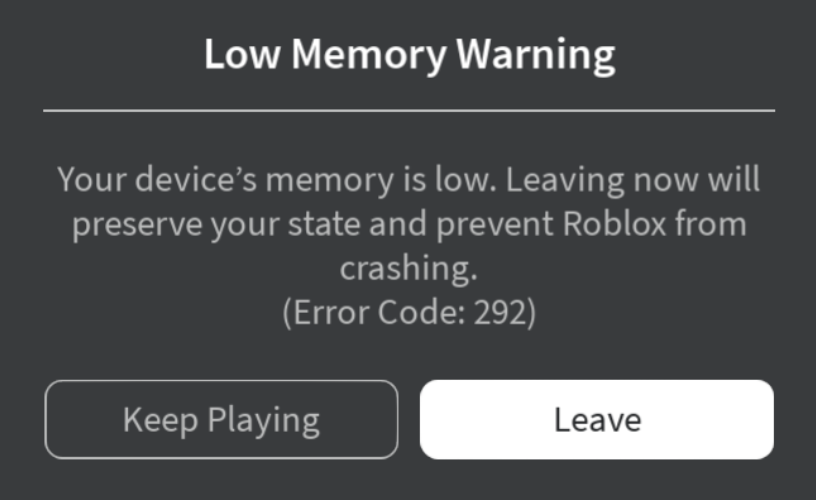
Low memory errors in Roblox typically mean your computer or device doesn't have enough available RAM (Random Access Memory) to run the game efficiently, alongside your operating system and other open applications. Roblox, especially modern, complex games within the platform, can be quite demanding. As the game loads more assets, textures, and scripts, it requires more RAM. When your system runs out, it might try to use your hard drive as virtual memory, which is much slower and leads to lag, stuttering, or outright crashes. Factors like outdated drivers, a cluttered system, or even too many browser tabs open can exacerbate this issue, turning what should be a relaxing session into a technical headache.
How Can I Check My Roblox Memory Usage in Real-Time?
Understanding your memory consumption is the first step to diagnosing the problem. On Windows, you can easily monitor this via the Task Manager. Press Ctrl Shift Esc to open it, then navigate to the 'Processes' tab. Look for 'RobloxPlayerBeta.exe' (or similar for the game client). You’ll see its current memory usage. If it's consistently high, nearing your total installed RAM, you have a culprit. For a more detailed view, especially when playing, you can use the 'Performance' tab to see overall RAM usage, ensuring other applications aren't secretly hogging resources. This simple check gives you invaluable insight into whether Roblox itself or other programs are the main issue.
What are the Immediate Software Fixes for Roblox Low Memory?
Before considering any hardware changes, there are several effective software-based solutions you can try right now. These steps are quick, often free, and can significantly improve your Roblox experience.
Close Background Applications: This is perhaps the most straightforward fix. Every open web browser tab, Discord call, music player, or background utility consumes RAM. Before launching Roblox, close anything you don't absolutely need. Even seemingly idle apps can be actively using resources, contributing to your low memory woes.
Clear Roblox Cache and Temporary Files: Over time, Roblox accumulates temporary files and cache data that can become corrupted or simply bloat its footprint. Clearing these can free up space and resolve inconsistencies. To do this, press Windows Key + R, type %temp% and hit Enter. Delete everything in that folder (skip files that are in use). You can also clear your browser cache if you play Roblox through a web browser.
Adjust In-Game Graphics Settings: Within Roblox, lowering your graphics quality can drastically reduce memory usage. In any Roblox experience, go to the menu (usually by pressing Esc), then navigate to 'Settings' or 'Graphics'. Reduce the 'Graphics Quality' slider to a lower setting. While the game might not look as crisp, the performance improvement can be game-changing, especially for busy adults who prioritize smooth gameplay over ultra-high fidelity.
Update Graphics Drivers: Outdated graphics drivers can cause all sorts of performance problems, including inefficient memory handling. Always ensure your GPU drivers (NVIDIA, AMD, Intel) are up to date. Visit your graphics card manufacturer's website, download the latest stable drivers, and perform a clean installation. This ensures your hardware is communicating optimally with your system and games.
Run Disk Cleanup: Windows has a built-in utility to remove old, unnecessary files from your hard drive, which can indirectly help by freeing up space and making virtual memory management more efficient. Search for 'Disk Cleanup' in your Windows search bar, select your main drive, and let it scan. Check boxes for 'Temporary files,' 'Recycle Bin,' and other irrelevant system files, then proceed with the cleanup.
How Can I Optimize Windows Settings for Better Roblox Performance?
Your operating system's settings play a crucial role in gaming performance. Tweaking a few Windows options can significantly impact how much memory Roblox can access and how efficiently it runs.
Adjust Virtual Memory (Paging File Size): While not a direct substitute for RAM, optimizing your virtual memory settings can provide a buffer when physical RAM runs low. Search for 'Adjust the appearance and performance of Windows,' go to the 'Advanced' tab, and click 'Change' under 'Virtual memory.' Uncheck 'Automatically manage paging file size for all drives,' select your system drive, and set a custom size. A common recommendation is to set the initial size to 1.5 times your installed RAM and the maximum size to 3 times your installed RAM.
Disable Unnecessary Startup Programs: Many applications automatically launch when Windows starts, consuming precious RAM before you even open Roblox. Open Task Manager (Ctrl Shift Esc), go to the 'Startup' tab, and disable any programs you don't need running immediately. Be cautious not to disable essential system services.
Use Game Mode: Windows 10 and 11 offer a 'Game Mode' designed to optimize your PC for gaming by prioritizing game processes and reducing background activity. To enable it, go to 'Settings' 'Gaming' 'Game Mode' and toggle it on. This subtle optimization can give Roblox the slight edge it needs.
When is a Hardware Upgrade Necessary for Fixing Roblox Low Memory?
Sometimes, software tweaks just aren't enough. If you've tried all the optimization tips and are still experiencing persistent low memory errors, especially on an older machine, a hardware upgrade might be the most effective long-term solution. For many adult gamers on a budget, smart upgrades are key.
RAM Upgrade: This is the most direct way to fix low memory. If you're running on 4GB or even 8GB of RAM, especially with other demanding applications, upgrading to 16GB can make a world of difference for Roblox and overall system responsiveness. It's often a straightforward and relatively affordable upgrade that can extend the life of your current PC significantly.
SSD Upgrade: While not directly related to RAM, upgrading from a traditional HDD to an SSD (Solid State Drive) can vastly improve load times and the efficiency of virtual memory. This makes your system feel much snappier and can reduce the impact when your physical RAM is stretched thin. It's a great value-for-money upgrade for general performance.
Better Graphics Card: A more powerful GPU won't directly fix RAM shortages, but it can make the game run more efficiently at lower settings and handle textures better, potentially reducing the strain on system RAM by offloading graphical tasks more effectively. For gamers wanting better visuals alongside performance, this is a consideration, but usually secondary to RAM for low memory issues.
Remember, mobile gaming dominates a significant portion of the market, but PC/console cross-play is huge in Roblox. If you're primarily on mobile, ensure your device has enough free storage and close background apps there too. For PC gamers, knowing when to invest in an upgrade is about finding that sweet spot between budget and performance.
Does Clearing Roblox Cache on Android or iOS Help with Memory?
Absolutely, clearing the cache on your mobile device for the Roblox app can significantly help with memory issues, just as it does on PC. Mobile devices also accumulate temporary data, and removing it can free up internal storage and reduce the app's memory footprint, leading to smoother gameplay. The steps vary slightly between Android and iOS:
On Android: Go to 'Settings' 'Apps' (or 'Applications') 'Roblox'. Then tap 'Storage' and select 'Clear Cache'. You can also try 'Clear Data' if cache clearing isn't enough, but be aware this will log you out of the app.
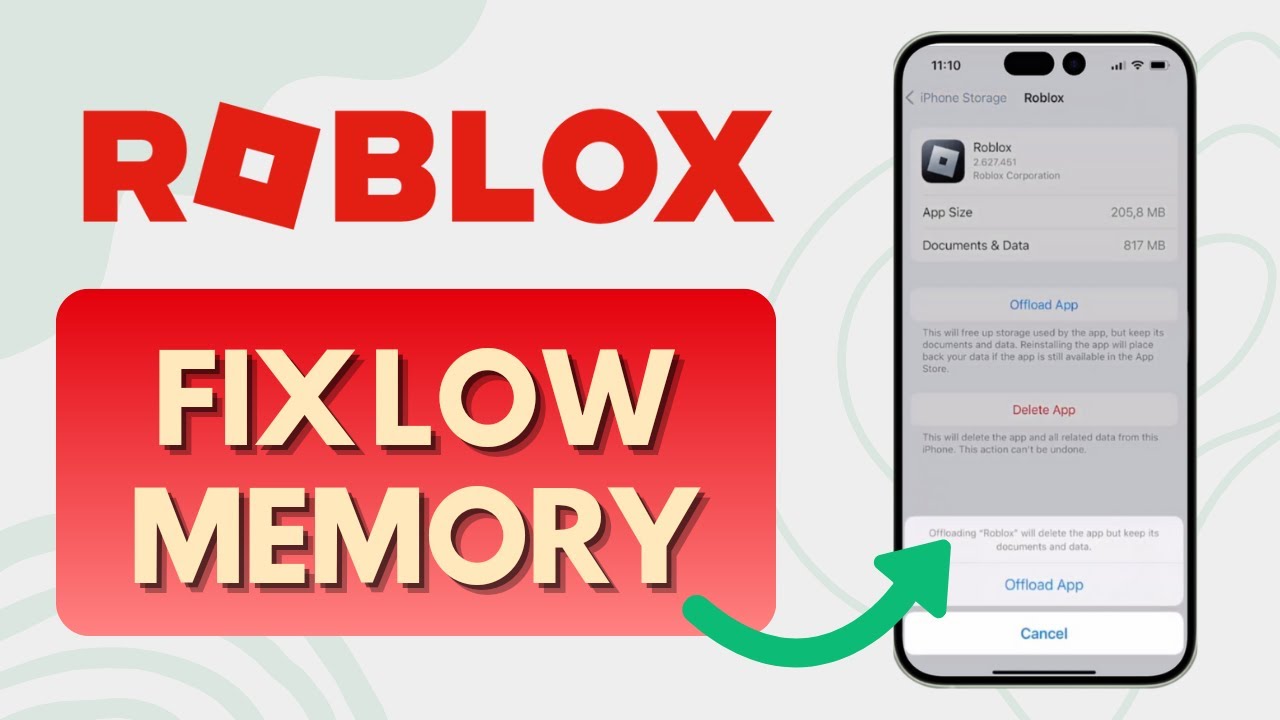
On iOS: iOS doesn't offer a direct 'clear cache' button for individual apps like Android. Instead, you can 'Offload App' (Settings General iPhone Storage Roblox Offload App), which removes the app but keeps its documents and data, then reinstall it. Or, if issues persist, delete the app entirely and reinstall it from the App Store. This is a more drastic but often effective step to refresh the app's files.
Given the mobile dominance in gaming and social gaming trends, keeping your mobile Roblox experience smooth is key to connecting with friends on the go. Regularly cleaning up helps maintain that performance.
How Can I Prevent Low Memory Errors from Happening Again?
Proactive maintenance is key to a consistently smooth Roblox experience. Think of it like keeping your car tuned up – regular checks prevent bigger problems down the road. Here are some habits to adopt:
Regular System Cleaning: Make it a habit to run Disk Cleanup and check your %temp% folder once a month. This prevents junk files from accumulating and impacting performance.
Keep Drivers Updated: Schedule monthly or quarterly checks for graphics card and other essential driver updates. Developers are constantly releasing performance improvements, and you don't want to miss out.
Monitor Background Processes: Before a serious gaming session, a quick glance at Task Manager to close unnecessary apps becomes second nature. It takes seconds but saves minutes (or hours) of frustration.
Restart Your PC: A simple restart can often clear out lingering memory leaks and refresh your system's resources, offering a clean slate for your Roblox session. Don't underestimate the power of a fresh start.
Consider a Lightweight Browser: If you use your browser while gaming (e.g., for Discord web or guides), consider a lightweight browser or extensions that help manage RAM usage, or switch to dedicated desktop apps like the Discord client.
By integrating these practices into your gaming routine, you'll spend less time troubleshooting and more time enjoying Roblox with your online friends, a key trend in social gaming this month.
Conclusion
Dealing with low memory errors in Roblox can be a real buzzkill, especially for those of us who value our gaming time for relaxation and connection. But as we've seen, there are plenty of effective strategies, from simple in-game tweaks and system optimizations to knowing when a hardware upgrade is truly needed. By taking a proactive approach and implementing these tips, you can transform your Roblox experience from a stuttering struggle to a seamless adventure. Remember, keeping your system clean, drivers updated, and background apps in check are your best defenses against performance bottlenecks.
What's your biggest gaming challenge when balancing life and play? Comment below and share your own tips for keeping Roblox running smoothly!
FAQ Section
Q: Is 8GB RAM enough for Roblox in 2026?
A: While 8GB of RAM can run Roblox, it's increasingly becoming the minimum, especially for complex games within the platform or if you run many background applications. For a smoother, more reliable experience in 2026, especially for adult gamers who often multitask, 16GB of RAM is highly recommended and offers much better performance headroom.
Q: Can my internet connection cause Roblox low memory issues?
A: No, an internet connection primarily affects latency (ping) and data transfer speeds, not your computer's RAM usage directly. While a poor connection can cause lag, it won't trigger a 'low memory' error. Memory issues are about your system's physical and virtual RAM capacity.
Q: Does deleting Roblox and reinstalling it fix memory problems?
A: Reinstalling Roblox can often fix persistent memory problems by ensuring all game files are fresh and not corrupted. It's a more drastic step than clearing cache but can be very effective if other solutions fail, essentially giving you a clean slate for the game's installation.
Q: What's the best browser to use for Roblox to avoid memory issues?
A: Most modern browsers are fairly optimized, but lightweight browsers like Brave or even Microsoft Edge (when not overloaded with tabs) can sometimes use less RAM than Chrome. However, playing directly through the Roblox client is generally more memory-efficient than playing via a browser for dedicated sessions.
Q: Should I worry about Roblox using too much CPU instead of RAM?
A: While this article focuses on RAM, high CPU usage can also lead to performance issues and may sometimes coincide with inefficient memory handling. If RAM fixes don't help, checking CPU usage in Task Manager is a good next step. Often, optimizing RAM also indirectly benefits CPU by reducing the need for slower virtual memory operations.
Q: How often should I perform system maintenance for Roblox?
A: For optimal Roblox performance, aim for monthly system maintenance, including clearing temporary files, updating drivers, and checking for unnecessary startup programs. A quick weekly check on background processes before gaming sessions can also be beneficial in keeping things running smoothly.
Clear Roblox cache and temporary files. Reduce in-game graphics settings. Close unnecessary background applications. Update graphics drivers. Check system memory and consider RAM upgrade. Utilize Windows ReadyBoost. Optimize Discord overlay and other gaming tools.
How To FIX Low Memory Warning On Roblox YouTube Roblox Giving You The Memory Low Blues Lets Fix It Low Memory Warning Roblox How To Fix Roblox Low Memory Warning On IPhone IPad NEW 2026 YouTube
How To Reduce Roblox Memory Usage How To Fix Low Memory On Roblox Mobile YouTube How To Fix Low Memory Warning Error Code 292 On Roblox Fix Low Memory On Roblox Step 9 How To Fix Roblox Mobile Low Memory Final Solution YouTube
How To Reduce Roblox Memory Usage How To Fix Roblox Low Memory Warning Error Tutorial How To Fix Roblox Low Memory Warning On IPhone IPad 2025 Updated Way How To Fix Roblox Low Memory YouTube How To Fix Roblox Low Memory Warning Fix Low Memory Roblox Mobile
How To Fix Roblox Low Memory YouTube How To Fix Roblox Low Memory YouTube How To Fix LOW Memory On Roblox YouTube How To Fix Roblox Low Memory Warning Fix Low Memory Roblox Mobile
How To Fix Roblox Low Memory Warning YouTube What Is Memory On Roblox And How Does It Affect You What Does Low Memory Mean On Roblox How To Fix Low Memory Warning On Roblox Code 292 IOS Android Hqdefault How To Fix Roblox Low Memory Warning On IPhone IPad YouTube
How To Fix Roblox Low Memory Warning On IPhone IPad YouTube How To Fix Roblox Low Memory Warning UPDATED NEW METHODS RoadTo10k FIXED ROBLOX LOW MEMORY WARNING IOS How To Fix Low Memory On Roblox How To Fix Roblox Low Memory Warning On IPhone IPad Full Guide 2026
Fortnite And Roblox Making IPad 9 Obsolete Sooner Than Expected Low Memory Warning How To Reduce Roblox Memory Usage How To Fix Roblox Low Memory Warning On Mobile UPDATED METHOD YouTube Fix Low Memory On Roblox For PC Mobile YouTube
How To Fix Low Memory On Roblox What Should You Do When Roblox Says How To Fix Low Memory On Roblox YouTube How To Fix Roblox Low Memory Warning On Mobile YouTube How To Fix Low Memory In Roblox IPad Fix Roblox Low Memory Issue
How To Fix Roblox Low Memory Easy Step By Step YouTube Roblox Low Memory Issue How To Fix Cause Roadto10k YouTube How To Fix Low Memory Warning On Roblox Guide To Fix Memory Error How To Fix Low Memory Warning On Roblox IPhone IPad Android YouTube